In-Game Settings - DFP15 & (u)DFP20
VRS™ uDFP20 & DFP15 in-game settings for Various Racing Titles
The VRS™ uDFP20 & DFP15 Wheel Bases will work with any game that supports DirectInput force feedback devices. In this article, we have compiled In-Game settings for various racing sims & games based on VRS coaches’ experience and feedback as well as our invaluable discord community. You will find pre-configured game presets for all titles in our last Config Tool release.
For any of the titles, which require a Registry key to be added, please download the DirectForcePro® Config tool, where this process is automated.
All of these settings are personal preferences and may also need to be changed depending on the car/tracks you drive. These are meant to be good starting points, and you may like them “as is”. We will keep this article updated as requests come in for other racing games, as well as additional tips for games we already covered. If you have any suggestions for settings, or would like us to post recommended settings for a game not included here, please send us a message through our contact form, or in the related Discord channels.
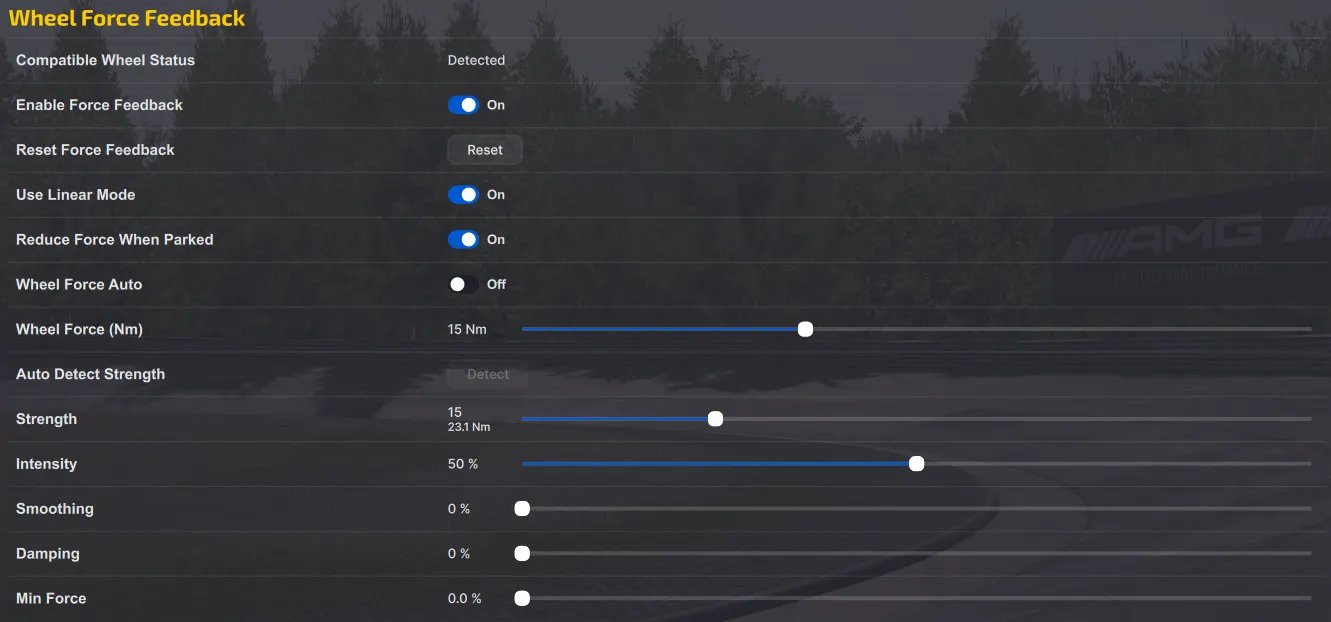
iRacing:
Our VRS™ uDFP20 & DFP15 Wheel Bases were developed with iRacing in mind on the earlier stages of our development and they should work very well with iRacing out of the box. In our latest config tool release, you will find 60Hz & 360Hz Presets crafted by our VRS™ Coach, Paschalis Gkergkis.
Set the “Wheel Foce Nm” to match the torque rate of your uDFP (6,9,12,15,20) and 15 for the DFP15. The intensity setting controls how strong the FFB will be when pressing the auto button in the sim, we recommend starting around 50% and increasing/lowering the % depending the car/track combo after driving for a couple of laps. You can also use the strength slider for manual allocation, just make sure that you don’t set it too high which may result in hitting maximum output or “clipping”. Our coaches recommend 50% intensity as a baseline for the uDFP20 and 60-70% for the DFP15.
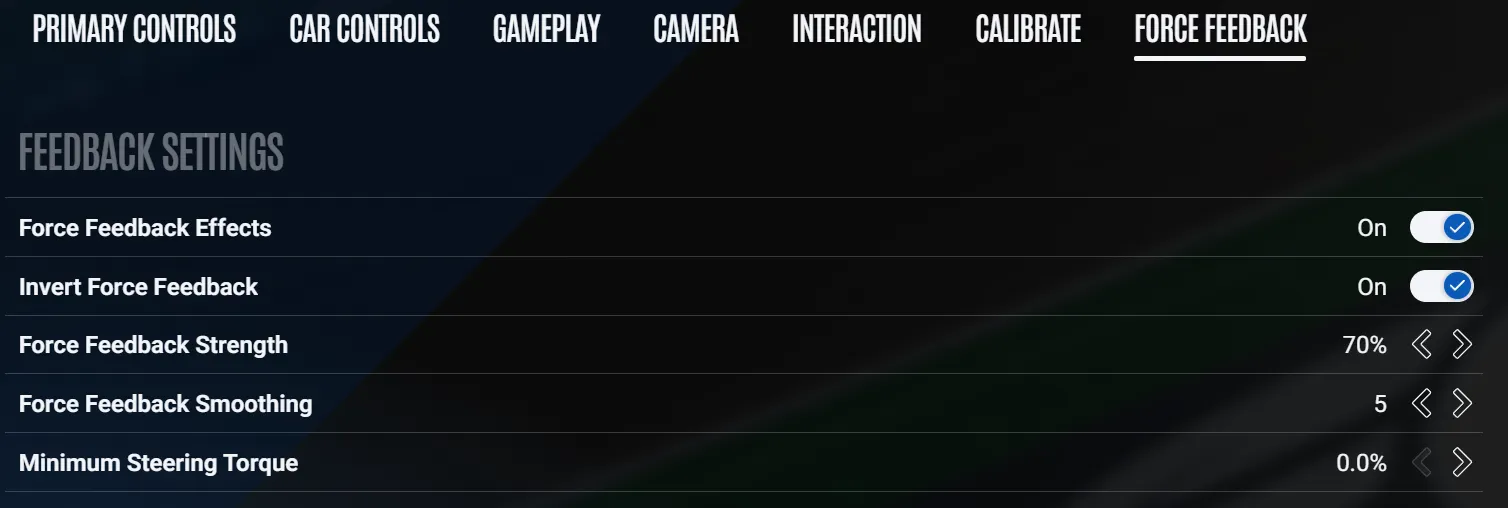
Le Mans Ultimate:
In collaboration with Dan Suzuki who has reviewed our recently DFP15, we suggest keeping it simple in the LMU in-game settings. After making sure that the FFB is inverted, the smoothing setting is the most commonly changed value. If you experience heavy vibrations at the end of the stints due to flat spots, you may want to increase smoothing to mitigate the issue. The setting can also be track & car dependant so feel free to experiment and find the value that feels best for you.
An updated preset for LMU can be found in the latest config tool release! Thanks to all our dedicated Discord members for giving us valuable feedback!
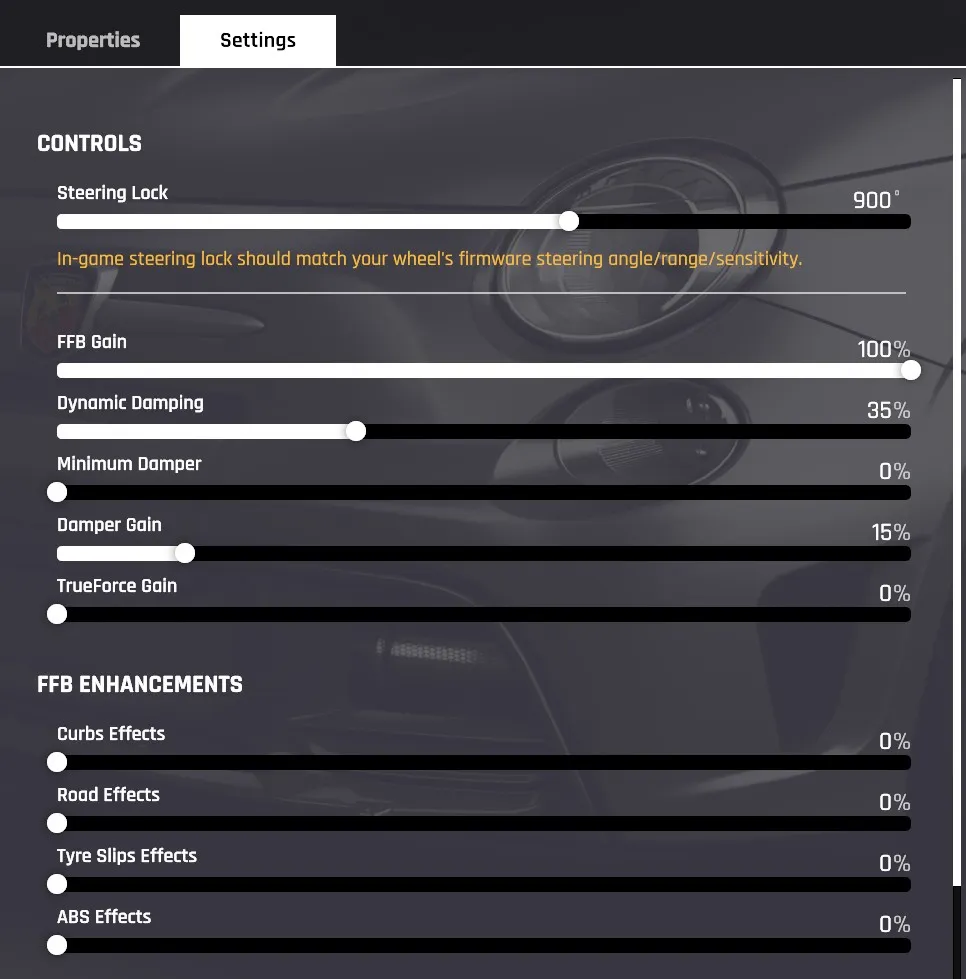
Assetto Corsa Evo (ACE):
Assetto Corsa Evo is fully supported by our wheel bases and our brand new R295 Steering Wheel that comes with pre-made SimHub profiles. In terms of wheel base settings, we have compiled the in-game settings below, as well as a preset made by our coaches. Depending the car that you drive, you may need to tweak dynamic damping in the game settings, or simply increase friction in the config tool for more static resistance when driving. Overall FFB strength can be altered via Max Force in the config tool or the “FFB Gain” setting if not maxed out. Don’t hesitate to tinker with the provided filters & settings until they feel right for you, or check our discord and ask any of our VRS™ coaches and our ever-engaging community to share their preferences!
Assetto Corsa Competizione (ACC):
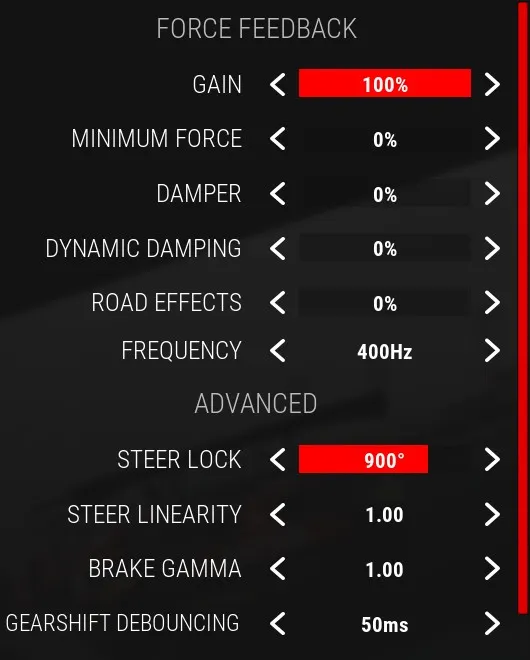
For ACC, we recommend starting from the ACC Preset in the config tool and match these in-game settings. Use the Max Force in the config tool if you prefer a harsher/softer overall feel if the “Gain” setting isn’t maxed out. Our latest tool preset has the Responsive 2 filter as baseline, if you feel strong vibrations over bumps & curbs, tinker with the softer filters to your liking!
Assetto Corsa (AC):
Here is a screenshot of the suggested in-game settings from VRS™ Coach Paschalis Gkergkis:
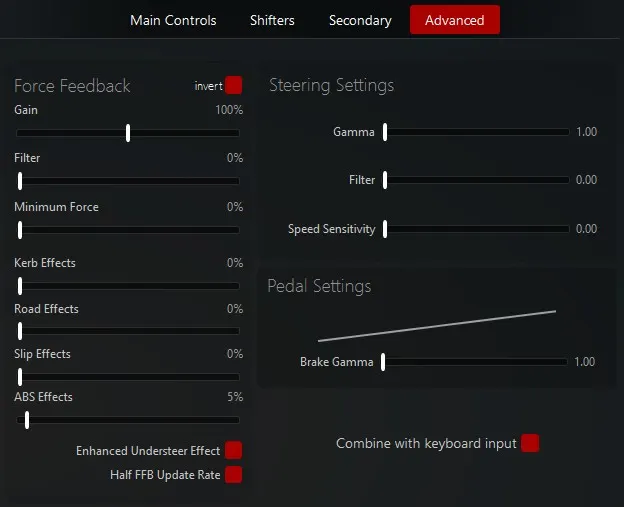
We recommend starting from our own AC Preset that has a moderate amount of damping and adjust the FFB strength either by adjusting the “Gain” setting in-game or by the Max Force in the Config tool. A good starting point is 50% for the uDFP20 and 70% in the DFP15. If you the FFB is too harsh over curbs, switch to a softer filter.
F1 2025:
Before running the game, add the registry key via our config tool. Also, add the xml files in your game directory as mentioned in the instructions placed in the zip file. Native support is in the way, so stay tuned!
Before running the game, add the registry key via our config tool. Also, add the xml files in your game directory as mentioned in the instructions placed in the zip file. Native support is in the way, so stay tuned!
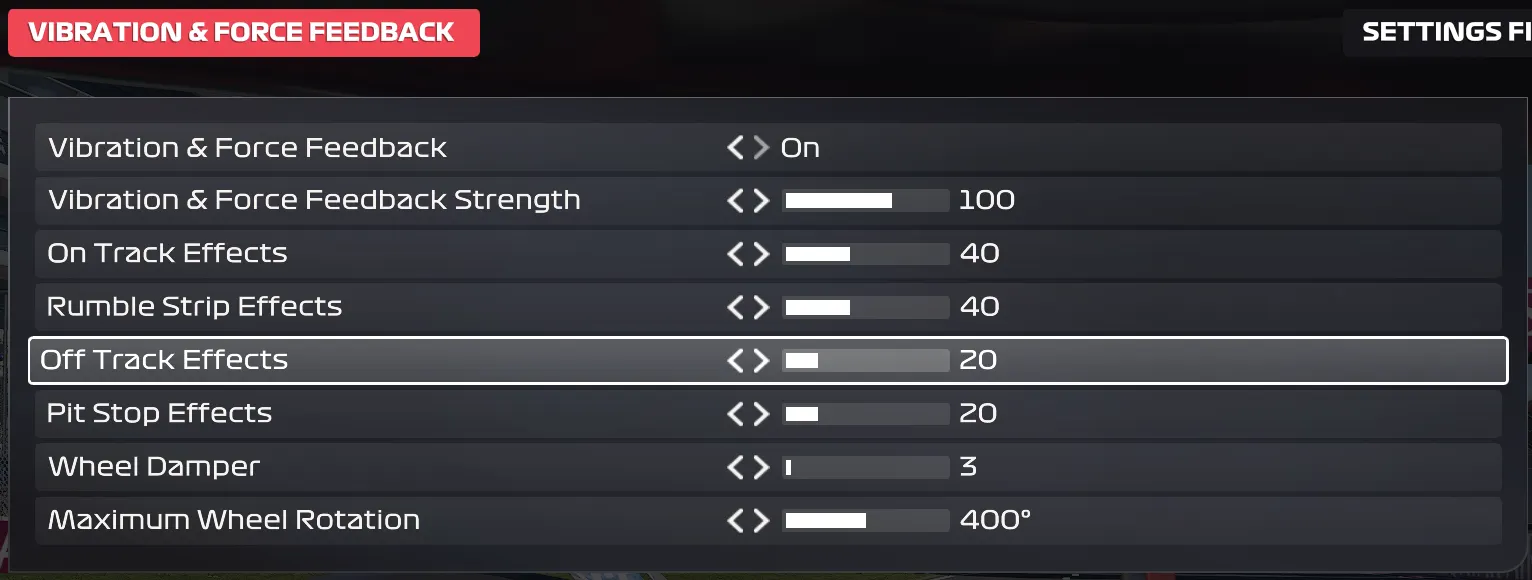
We recommend the settings below, if you feel the wheel is a bit jerky over curbs, try lowering the rumble strips by 5%. VRS Coach Paschalis Gkergkis recommends starting from 10Nm Max Force in the config tool until you find a right balance between wheel strength and road/curb effects ingame. EA suggests using 400 degrees of wheel rotation which needs to be configured in the the config tool too!
We have also prepared 2 brand new presets for the game for both (u)DFP20 & DFP15 Wheel Bases!
EA WRC:
Before running the game, add the registry key via our config tool. Also, add the xml files in your game directory as mentioned in the instructions placed in the zip file.
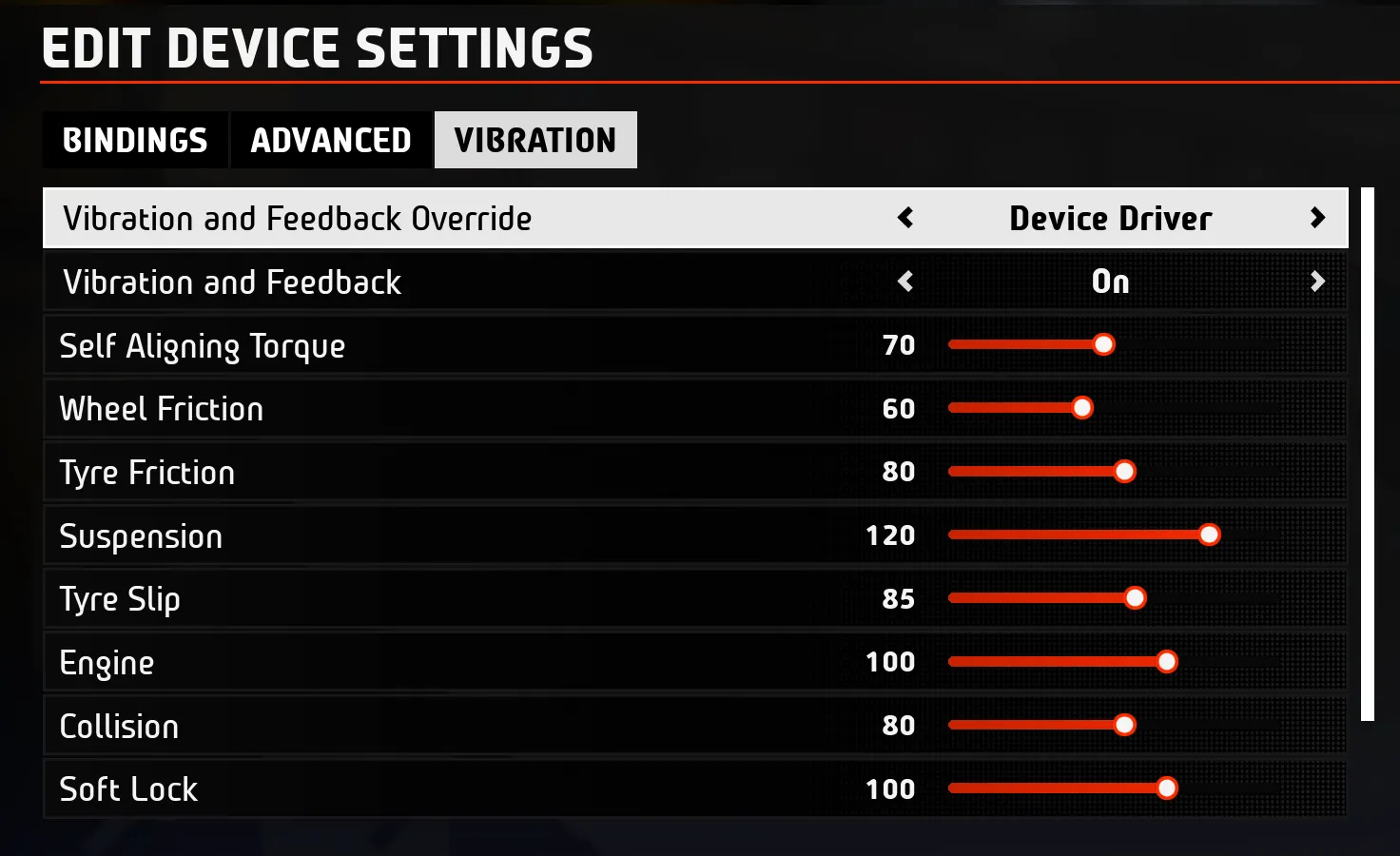
Thanks to VRS & Apex Racing Academy coach Jamie Fluke for providing his in-game settings for the latest WRC game by EA. If the wheel feels too harsh, Jamie recommends adjusting the damping effect in the config tool until it feels right to you! Jamie’s config tool preset has been added as a preset in our latest release!
Soft Lock: On - 100% Steering Center Force: Off
RaceRoom Experience (WIP):
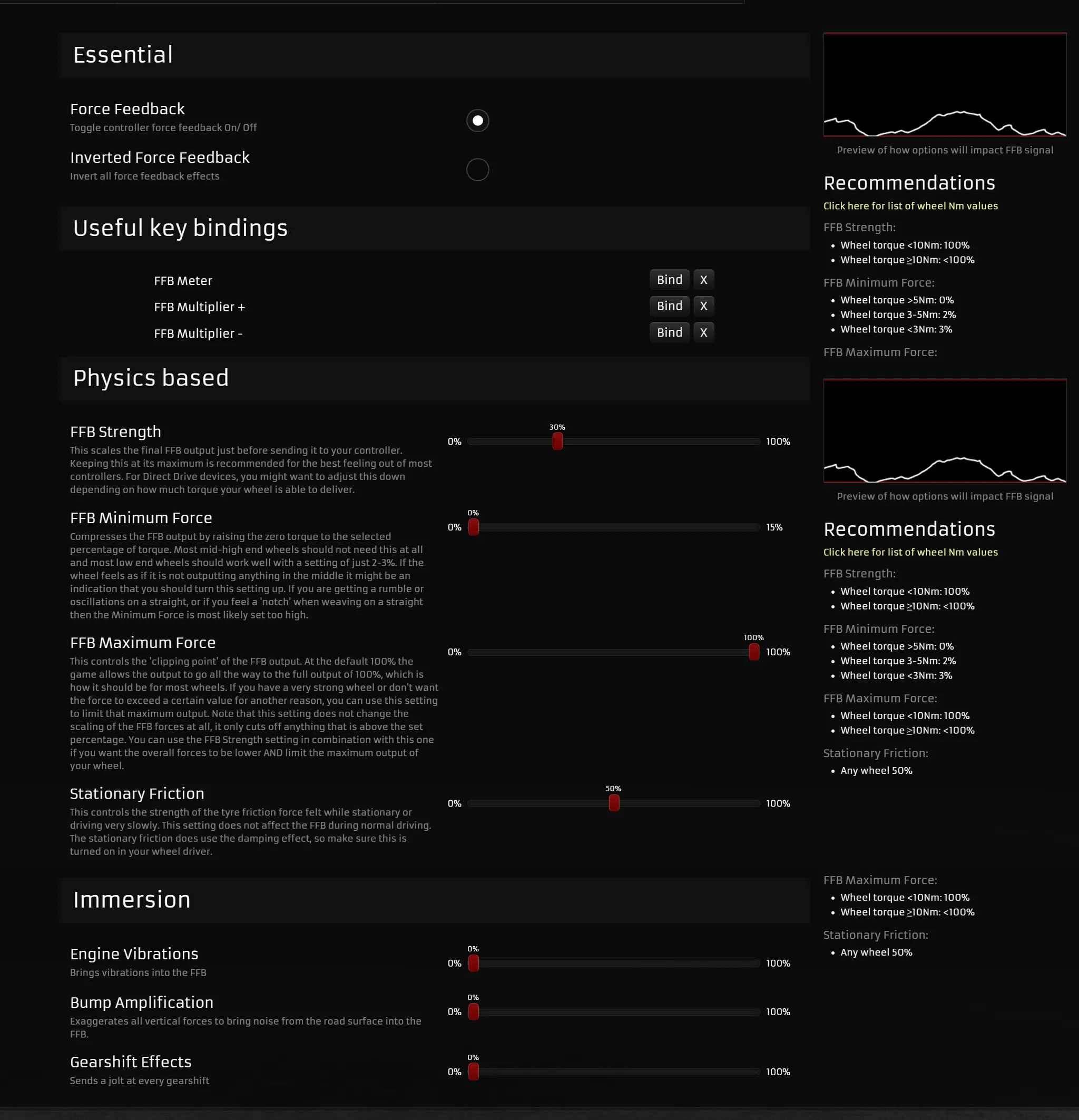
Special thanks to Moritz Löhner, DTM Esports Champion in RaceRoom & MOUZ Esports driver! Moritz runs 100% force in the tool and adjusts the ingame strength via the “FFB Strength” option in the menu - feel free to tinker with that setting until you find the right balance between wheel strength & effects. In our latest config tool, we have also added a RaceRoom preset based on Moritz’s feedback!
RFactor 2:
Similar in-game settings to LMU, use the smoothing setting to dampen flatspots and harsh curbs/bumps strikes to your liking. The “Force Feedback Strength” value needs to be set to -100% in order to align the direction of the Force Feedback signal coming from rFactor 2 to the VRS™ Wheel Bases.
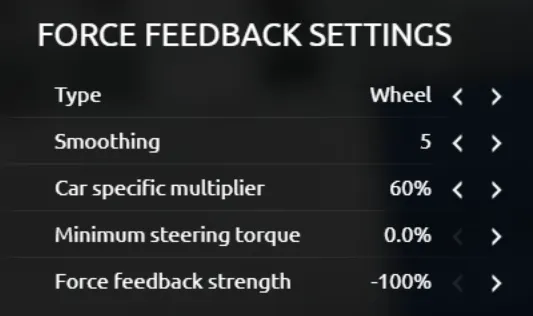
You may need to invert the Force direction in your wheel profile.
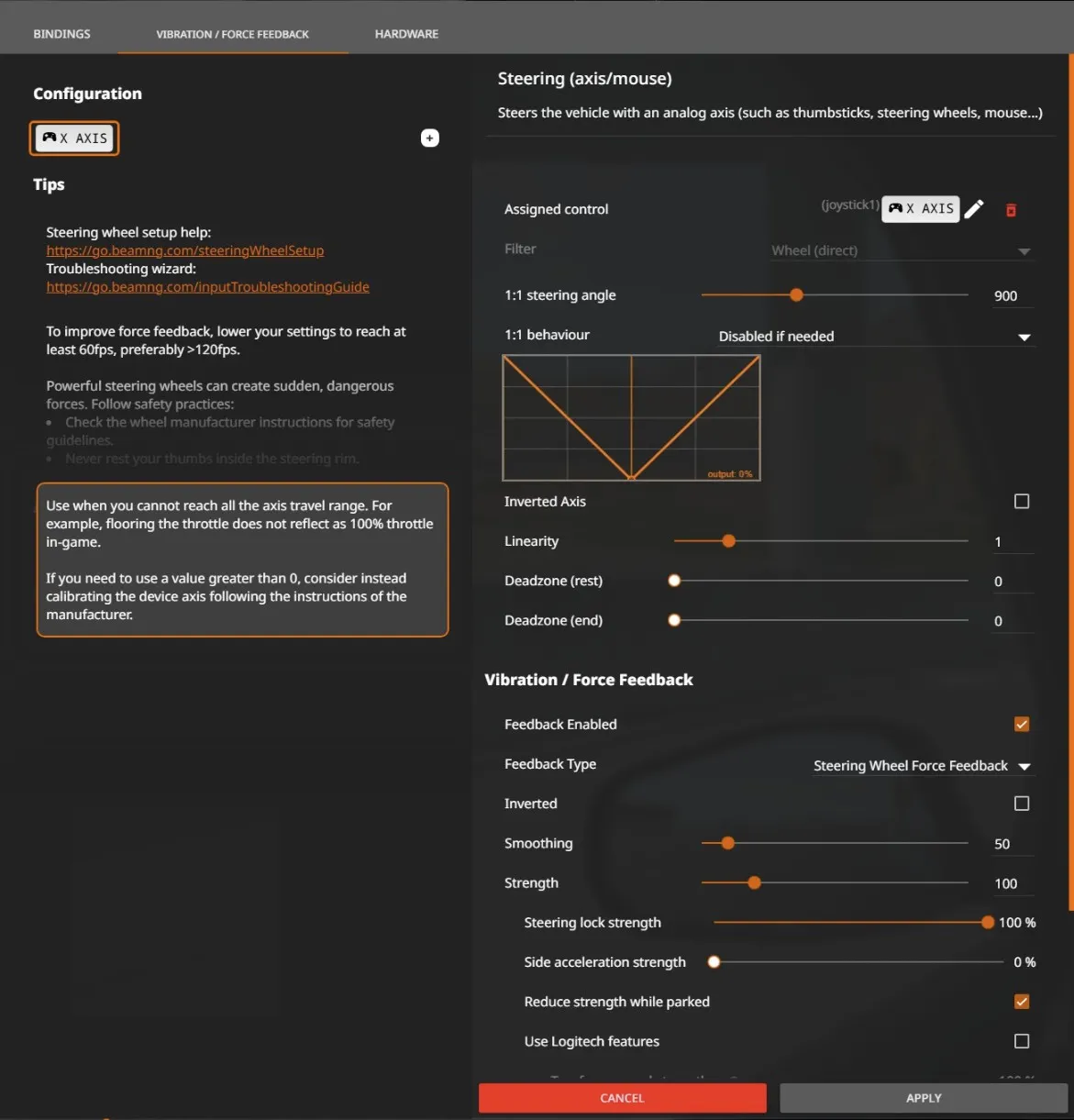
BeamNG.Drive:
Thanks to VRS Coach Martin Krönke for providing his in-game settings for BeamNG.Drive. Martin recommends minimal filtering via the config tool and 100% max force as the overall strength can be altered in-game.
Update rate limit: Automatic Update type: Fast